Edexcel GCSE PE

The content on this page follows the Edexcel GCSE PE specification. The features and materials are designed to support teaching, learning, assessment and revision.

PE Teachers - get access to all topics for teachers and pupils

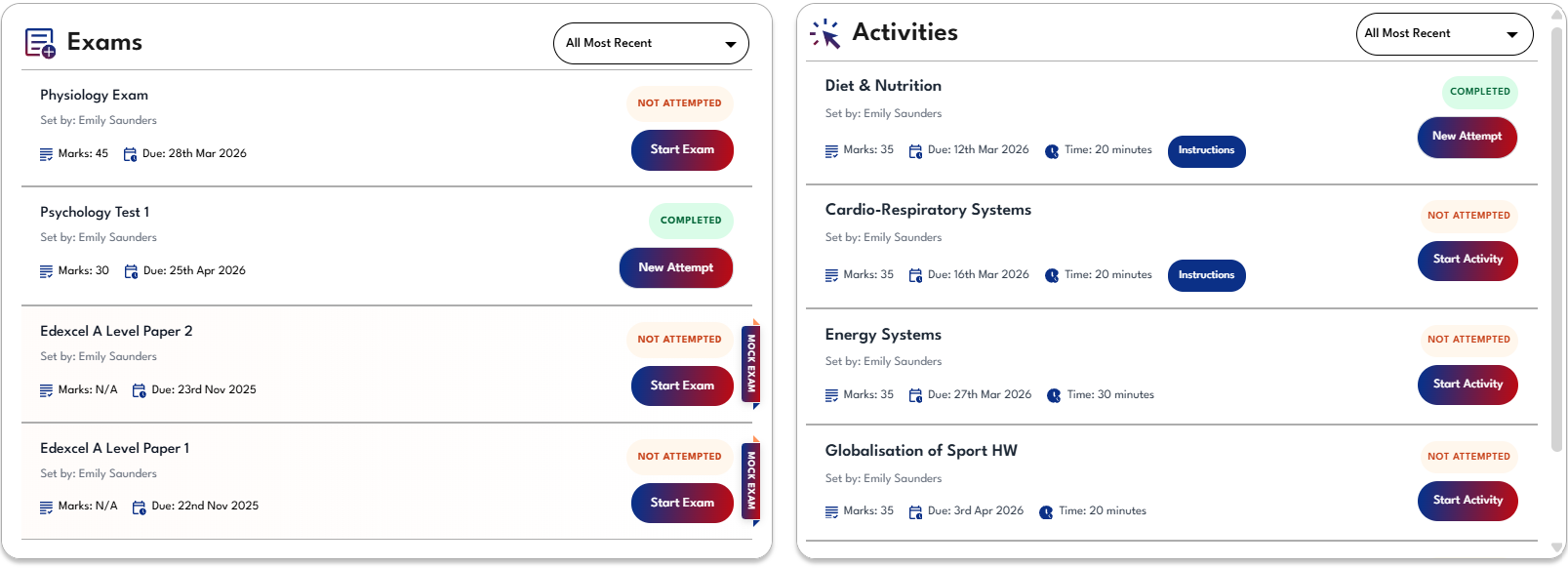
Mock Exams

Maximise exam preparation without extra marking

How to Use PE Classroom’s Mock Exams:

1

Set one of our pre-made Mock Exams for your class. This follows the format of the live exams with never seen before questions.

2

Once completed, pupils will receive instant AI marks and feedback for their answers.

3

Track results and view your pupils’ strengths and weaknesses to pinpoint areas for revision.

Get Started with Mock Exams

Want to get access to our Mock Exams as well as our other online learning tools? View our membership options below.

Membership

Edexcel Paper 1

View Exam

Edexcel Paper 2

View Exam

Tracking

Tracking

PE Departments with our Teacher & Pupil Package can track their pupils results and progress through the teacher dashboard.

PE Departments with our Teacher & Pupil Package can track their pupils results and progress through the teacher dashboard.

View our membership options to unlock tracking

View our membership options to unlock tracking

Providing teachers with instant results & analysis

Providing teachers with instant results & analysis

View and compare pupils results for Quizzes, Examinator, Exam Builder and Mock Exams

Produces easy to read individual and class report cards in seconds.


View and edit individual pupils answers, marks or AI feedback.

Get started - Adding Pupils

Take a look at the video to learn how to add pupils once you have a School Membership. 

You can either create the pupil logins yourself, or get a shareable link to allow pupils to create their own accounts. 

This will add your pupils to your class and you will be ready to track. 

Take a look at the video to learn how to add pupils once you have a School Membership. 

You can either create the pupil logins yourself, or get a shareable link to allow pupils to create their own accounts. 

This will add your pupils to your class and you will be ready to track. 

Take a look at other support videos on pupil tracking below.

Frequently Asked Questions

Skeletal System Resources

Click below to download the resources. Scroll down the page to access further materials.

Pupil Work-Booklet

Exam Questions

Answer Booklet

Mark Scheme

Slideshow Presentation

The slideshow presentation below will support teaching and learning. The presentation can be opened in full screen and links are made to the pupil work-booklet.

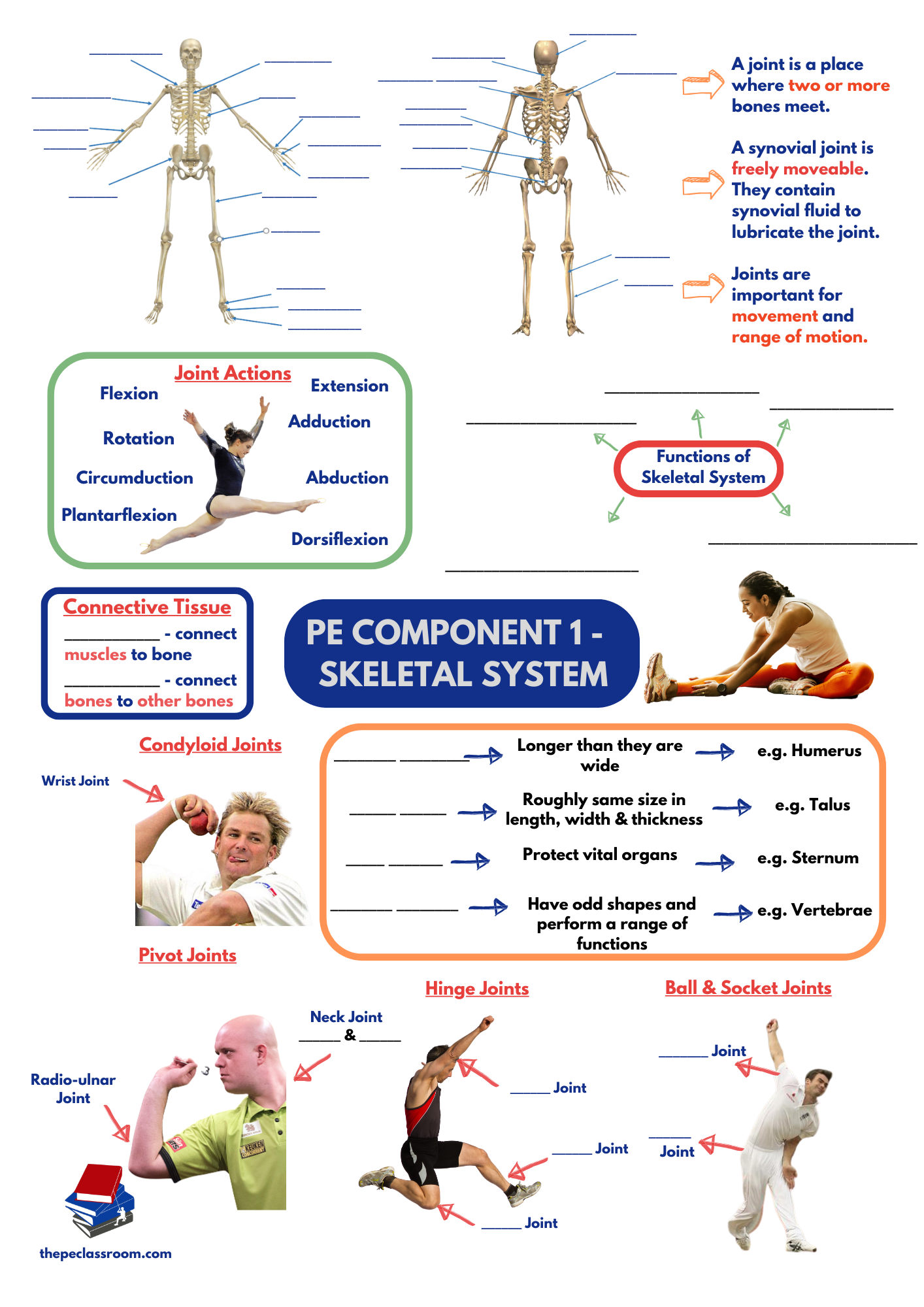
Cheat Sheet

The Cheat Sheet found below gives an overview of this topic. Click below to download.

Exams built and set by teachers will appear here for pupils to view and complete online. Marks and feedback will be provided immediately via A.I. with all data shared with teachers.

Teachers - this area is where pupils will see exams set to their class, please go to the 'Exam Builder' tab to view and manage your existing exams.

Skeletal System Videos

The Functions of the Skeletal System

Use the short videos below to learn about this topic.

Protection of Vital Organs
Muscle Attatchment
Joints for Movement
Mineral Storage
Blood Cell Production

Bones of the Body

Use the short videos below to learn about this topic.

Bones of the Body
Types of Bones

Joints

Use the short videos below to learn about this topic.

Introduction
Hinge, Ball & Socket Joints
Pivot & Condyloid Joints
Components of a Joint

Slideshow Presentation

The slideshow presentation below will support teaching and learning. The presentation can be opened in full screen and links are made to the pupil work-booklet.

Cheat Sheet

The Cheat Sheet found below gives an overview of this topic. Click below to download.

Skeletal System Quickfire Activities

The Functions of the Skeletal System

Hot Spots

Click on the hotspots on the image below to answer a range of questions covering this topic.

Bones of the Body

Hot Spots

Click on the hotspots on the images below to answer a range of questions covering this topic.

Match-Up

Turn the cards over in order to match-up the bone with the correct image.

Joints

Hot Spots

Click on the hotspots on the images below to answer a range of questions covering this topic.

Exam Questions - Fill in the Gaps

Have a go at each of the exam questions shown below by dragging the words into the correct place.

How to use Examinator?

1

Use the filters to pick exactly what you want to practice. You can filter questions by topics and marks.

2

Examinator will give you a question - type your response in the box, answering as you would in a real exam

3

Click the ‘AI Feedback’ button to receive Examinator’s marks and feedback, tailored to your response - use this feedback to improve future responses.


Filter by topic:
Edexcel Component 1
Edexcel Component 2 (Members only)

Filter by Marks:
1
2
3
4
5
6
9


Skeletal System Quiz (10 Marks)

You are currently not logged in, so your quiz results will not be saved, Please login to save your results.

My Exams Classes Due Date Edit Duplicate Delete Share

How to use Exam Builder

1

Use the filters to update the list of questions on the left side of the screen. Click + to add a question to your exam - they'll move over to the right side.

2

Assign your exam to a group for them to complete online, or choose 'no group' to download it as a PDF only.

3

Click post/schedule to set the date your exam will become available for pupils to complete. Once posted, you can also download it as a PDF in 'Manage Existing Exams'.

Filter by topic:
Filter by Marks:

Exam Builder

Create your own AI-marked exams for pupils to complete online.

Use the left side bar to apply your filters to our bank of exam questions to create your exam. Members can also set exams to their class and track results!

Example Exams

Click below to take a look at some example exams that have been created using Exam Builder.

You haven't created any activities yet. Use the Activity Generator to create your first activity!

Other Activities Classes Due Date Set By Duplicate
No activities found from other teachers in this group.
Loading...

Loading archived activities...

How to use Activity Generator

1
Use the filters to choose your topic, activity type, and time available, then click ‘Generate Activity’.
2

Review your generated activities. You can regenerate or delete any activity using the buttons on the right.

3

When you're happy with your activities, click ‘Create Activity’ and give it a name.

4

Your activity will now appear in ‘Manage Existing Activities’. From there, you can view it or share it with pupils by clicking ‘Share’ and sending the link via email or your usual homework platform. Pupils can complete the activity online and receive instant feedback.

Lesson Planner Preview
Activity Generator

Activity Generator

Generate AI-powered activities for your pupils that follow exam board specifications.

Use the left side bar to apply your filters to generate your AI activity.

Example Activities

Click below to take a look at some example activities that have been created using Activity Generator.

PE Teachers - get access to all topics for teachers and pupils.

Free Membership

Create a free membership or login to get access to the Free Topics and downloads across all courses. 

Sign Up

Log In

Forgotten your password? Click here to reset it.